 BusSing
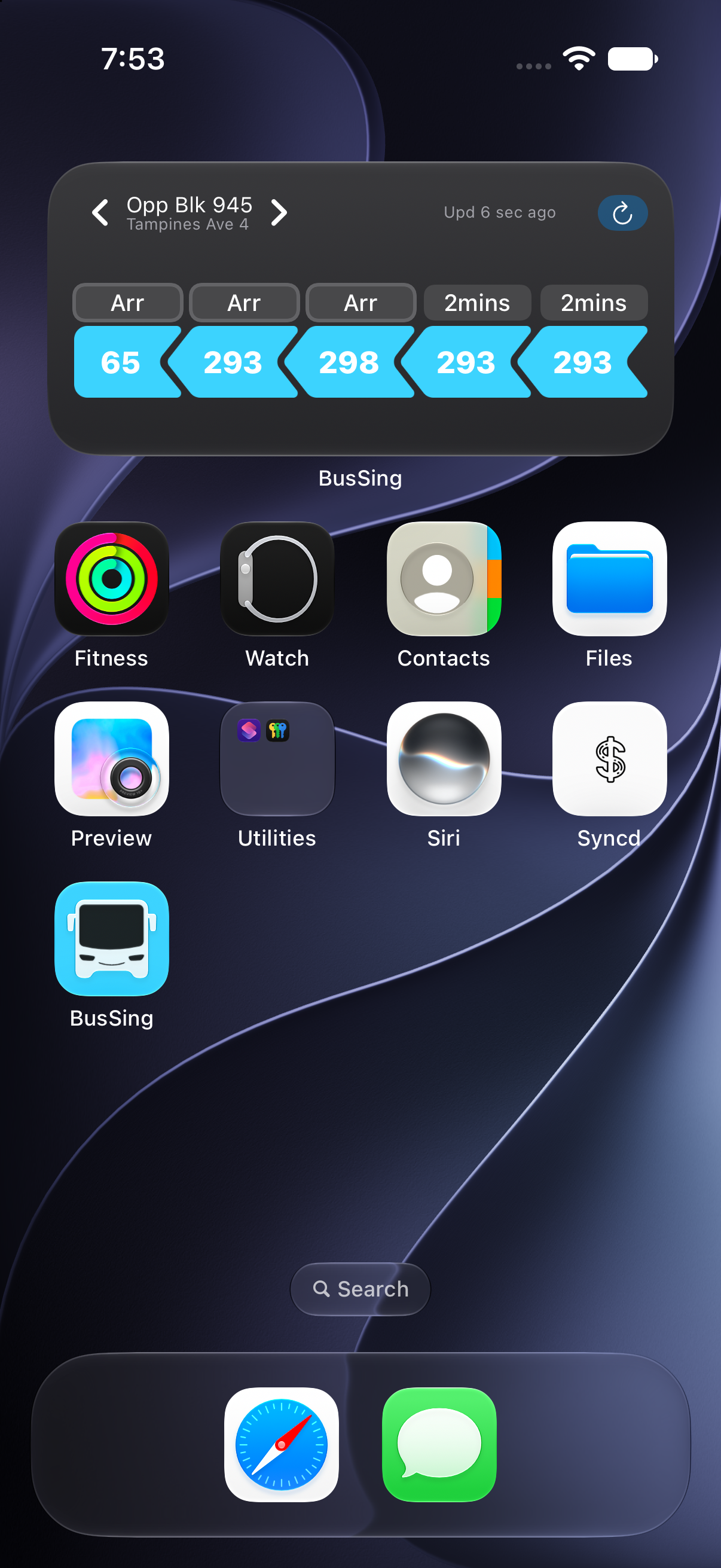
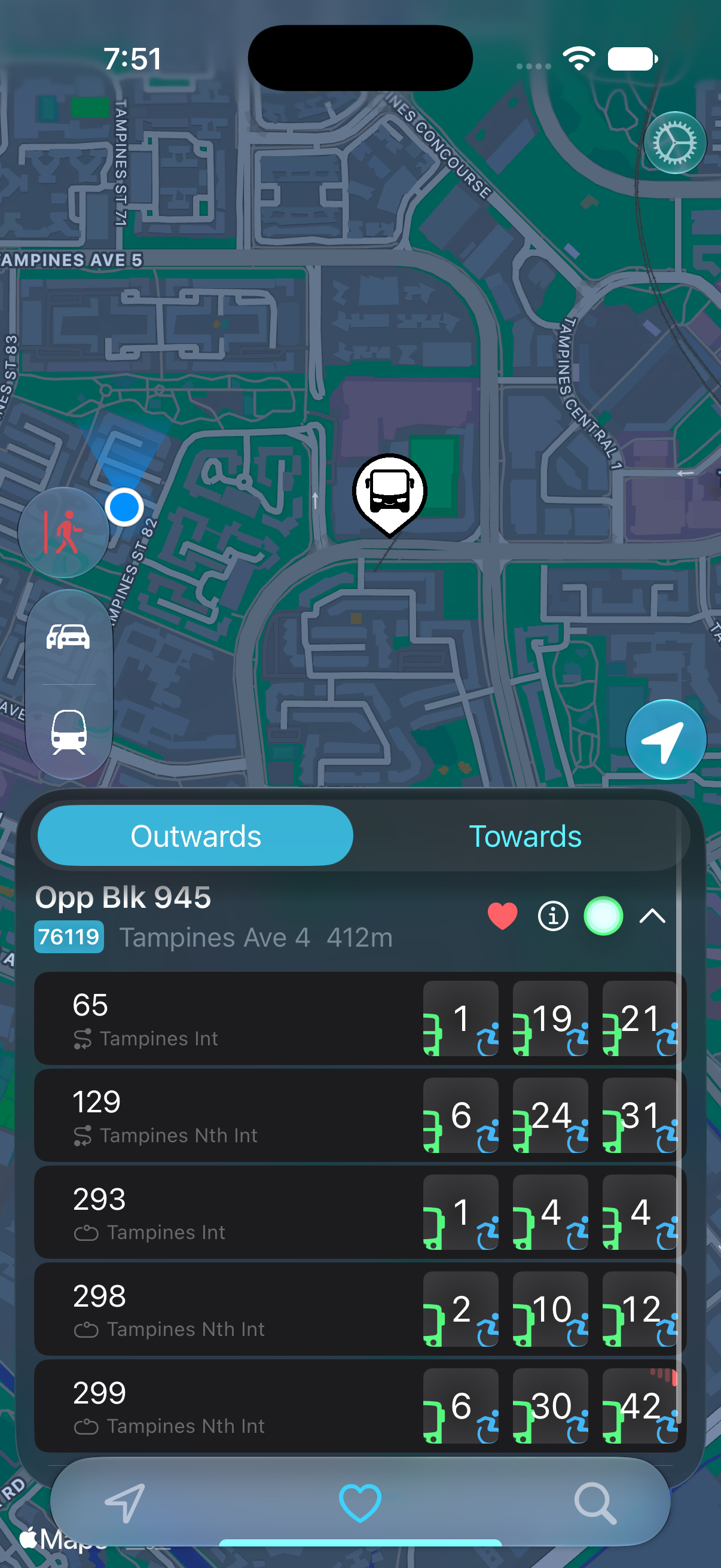
First compare the widget with the arrival list inside BusSing. That tells you whether to check the widget setup or the arrival data itself.
Check the same stop inside the app
Open BusSing and find the same stop code and bus service. If both views have missing estimates, check your internet connection. Missing LTA data can also affect the app.
If the app shows current estimates but the widget does not, check which stop the widget has selected. A nearby stop on the other side of the road is a different stop.
Widgets do not refresh every second
iOS manages widget updates using refresh budgets. A Home Screen widget is not a promise of continuous live data. For the bus you are actively waiting for, try a Live Activity and check the app when an estimate looks wrong.
Check the setup after an update
Update BusSing, open it once and check the widget again. For a configurable widget, hold it and open Edit Widget to confirm the stop.
BusSing release notes recommend removing and adding the widget again if its configuration breaks after an update. Make a note of the stop first. This replaces the widget on your screen; it does not require deleting the app.
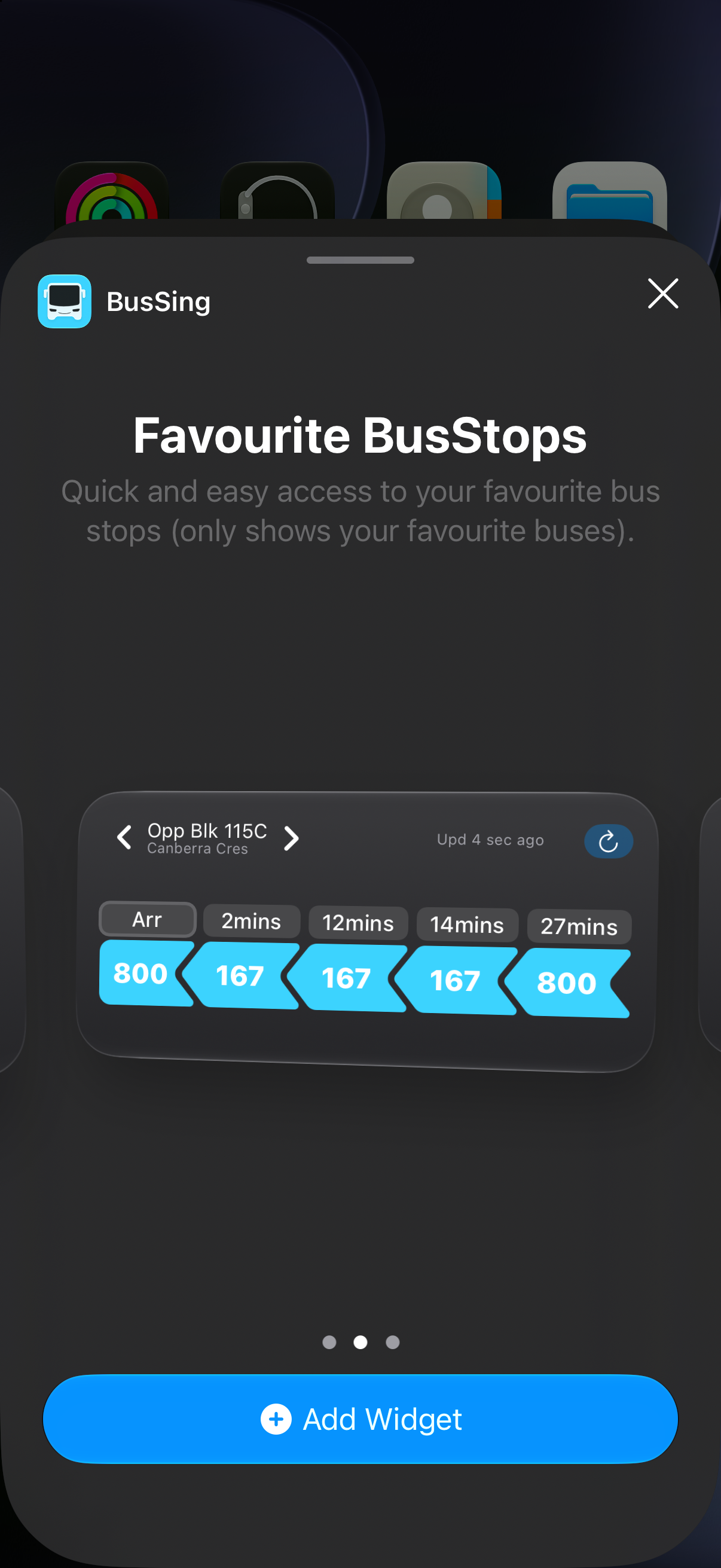
Add and configure a bus widget
Still showing the wrong time?
Send support the stop code, service number, time, app version and iOS version. Include the widget and the in-app arrival list captured close together. That is more useful than a screenshot of one countdown alone.
Sources: BusSing App Store features and release notes · Apple explains widget refresh budgets
Try it on your next commute.
Live Singapore bus arrivals, widgets and offline MRT maps. All in BusSing.