 BusSing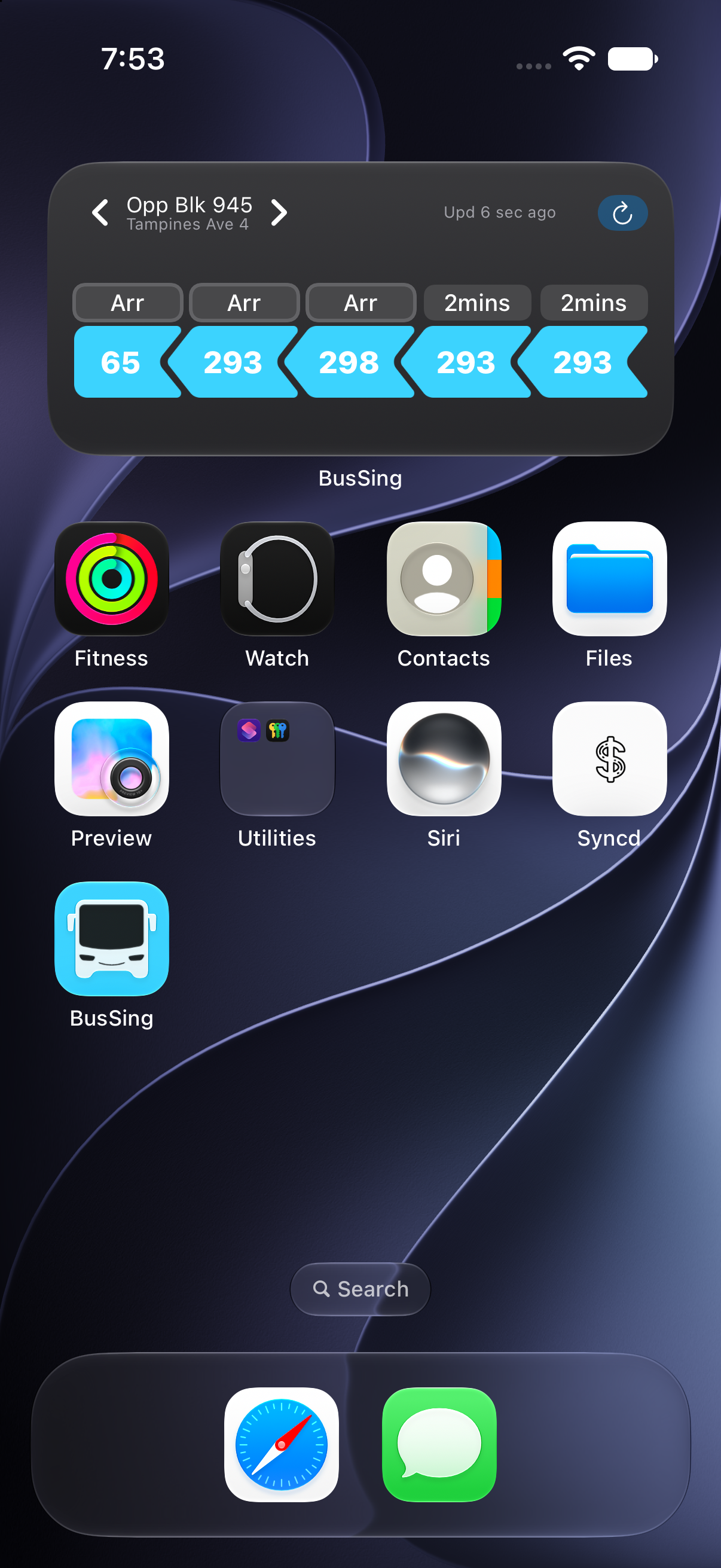
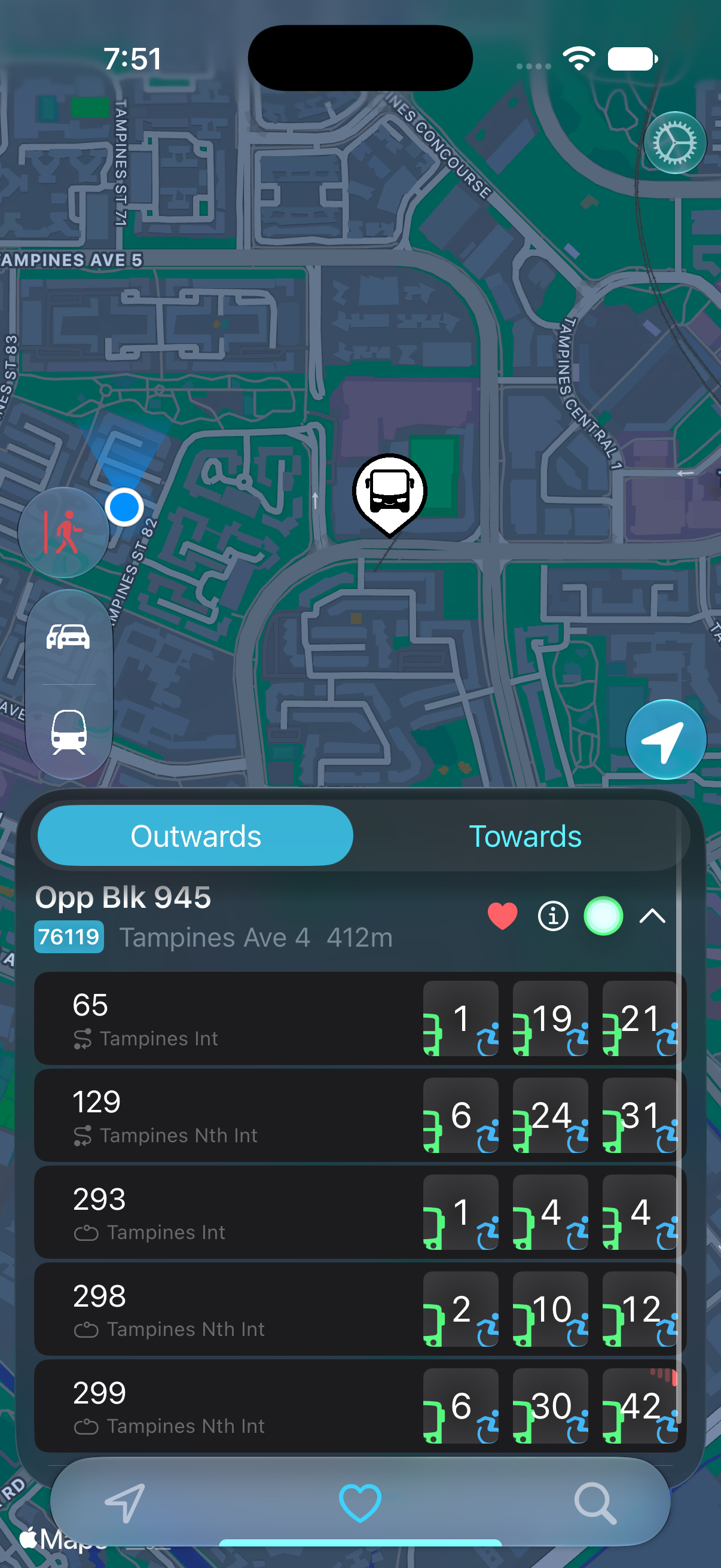
You can keep Singapore bus widgets for different boarding stops in one spot on your iPhone Home Screen. Configure a BusSing widget for each stop, then put them in a widget stack and swipe between them. This is useful when you want both directions of your commute close at hand without filling the screen with separate widgets.
Choose the stops you actually board at
Start with two stops: the one you use when leaving home and the one where you board for the return trip. Check each stop code and service destination in BusSing before saving it as a favourite. The stop where you get off at work may be different from the one you need to get home.
A stack suits stops you check at different times. If you want to compare two boarding points at the same moment, keep their widgets side by side instead. Only one widget in the stack is visible at a time.
Set up a separate widget for each stop
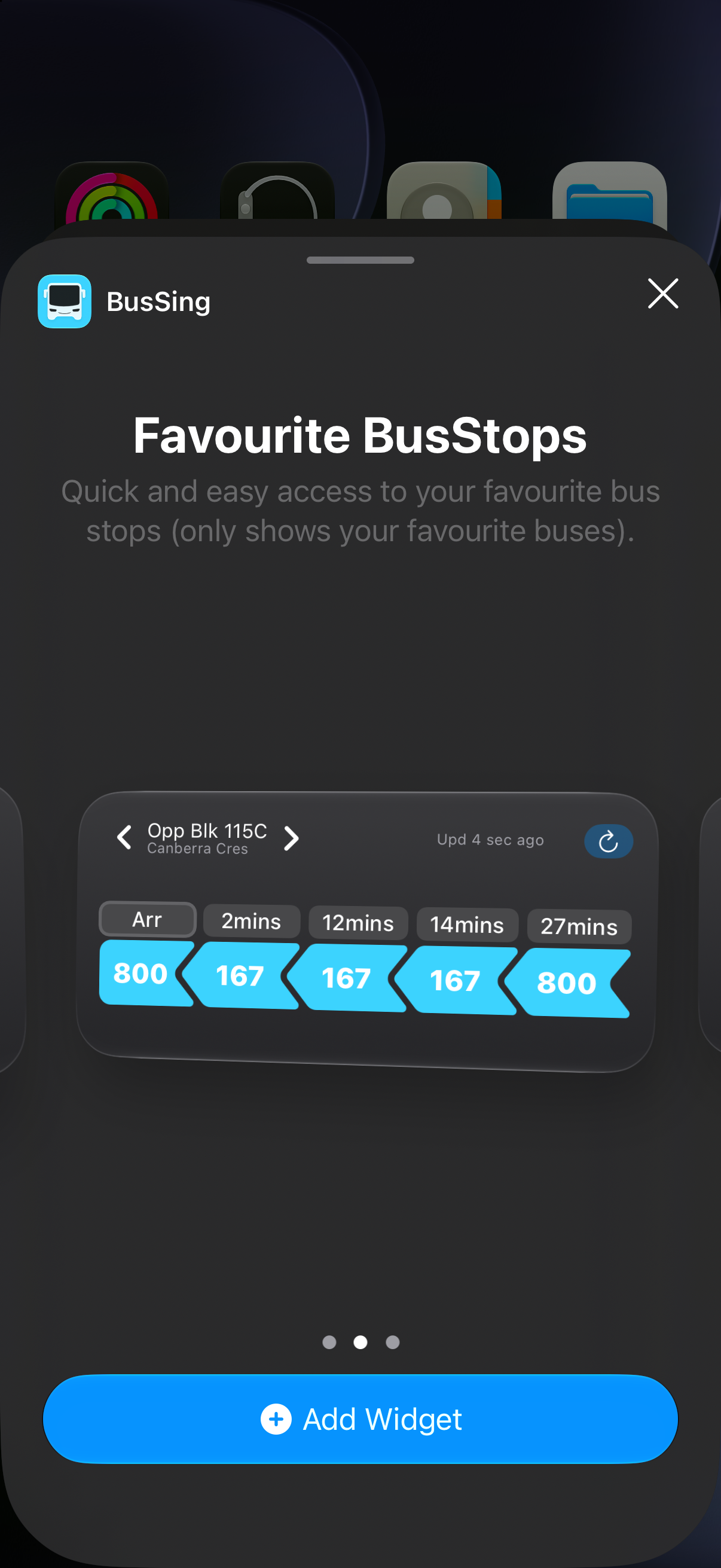
Add two BusSing Favourite BusStops widgets to your Home Screen, choosing the same size for both. If this is your first widget, follow the full setup guide linked below, then return here once each widget shows its intended stop.
- Touch and hold the first BusSing widget and choose Edit Widget.
- Leave Use Nearest Favourite off, then use Select Bus Stop to choose your outward boarding stop.
- Configure the second widget with the stop for your return journey.
- Compare each displayed stop with BusSing before putting the widgets together.
Add a Singapore bus widget to your iPhone

Put the bus widgets in one stack
Apple lets you create your own widget stack on the Home Screen or in Today View. You can start with just the two bus widgets.
- Touch and hold an empty Home Screen area until the icons move.
- Drag one bus widget onto the other, then tap Done.
- Swipe up or down on the stack to switch between stops.
Choose whether the stack switches automatically
Touch and hold the stack and choose Edit Stack to reorder its widgets or change Smart Rotate. Turn Smart Rotate off if you prefer to choose the visible widget yourself. Widget Suggestions is a separate control for suggested widgets.
Read the stop name after switching. A stack changing its visible widget does not establish that the stop is right for your next journey. For example, the stop nearest your office may serve buses towards home in only one direction.
BusSing also offers location-aware widgets through Express. Those select a nearby stop. For the fixed-stop setup in this guide, keep Use Nearest Favourite off in each widget. Changing the stack settings and changing a widget's selected stop are separate choices.
Check the arrival estimate before leaving
Stacking saves Home Screen space. It does not make arrivals refresh continuously. iOS manages widget updates, so swiping to another widget is not a guarantee that its bus data has just refreshed.
If a countdown looks old, compare the same stop and service with the arrival list in BusSing. Live arrivals need an internet connection and use LTA estimates, which can change. Leave time to walk to the stop and cross the road.
For the bus you are actively waiting for, you can start a Live Activity in BusSing. It keeps arrivals on your Lock Screen and, on compatible iPhones, Dynamic Island. A Home Screen widget stack does not create a Live Activity.
Apple Developer: how widgets update their content
Do you need BusSing Express for this setup?
Standard BusSing widgets are available without Express, so you can use them for this fixed-stop stack. BusSing is free to download, has no ads and requires iOS 18 or later on iPhone. Location-aware widgets and unlimited Live Activities are Express features. Check the app for current purchase terms and Live Activity allowances.
Sources: Apple Support: add, edit and stack widgets on iPhone · Apple Developer: widget updates and Live Activities · BusSing features and device requirements on the App Store
Try it on your next commute.
Live Singapore bus arrivals, widgets and offline MRT maps. All in BusSing.