 BusSing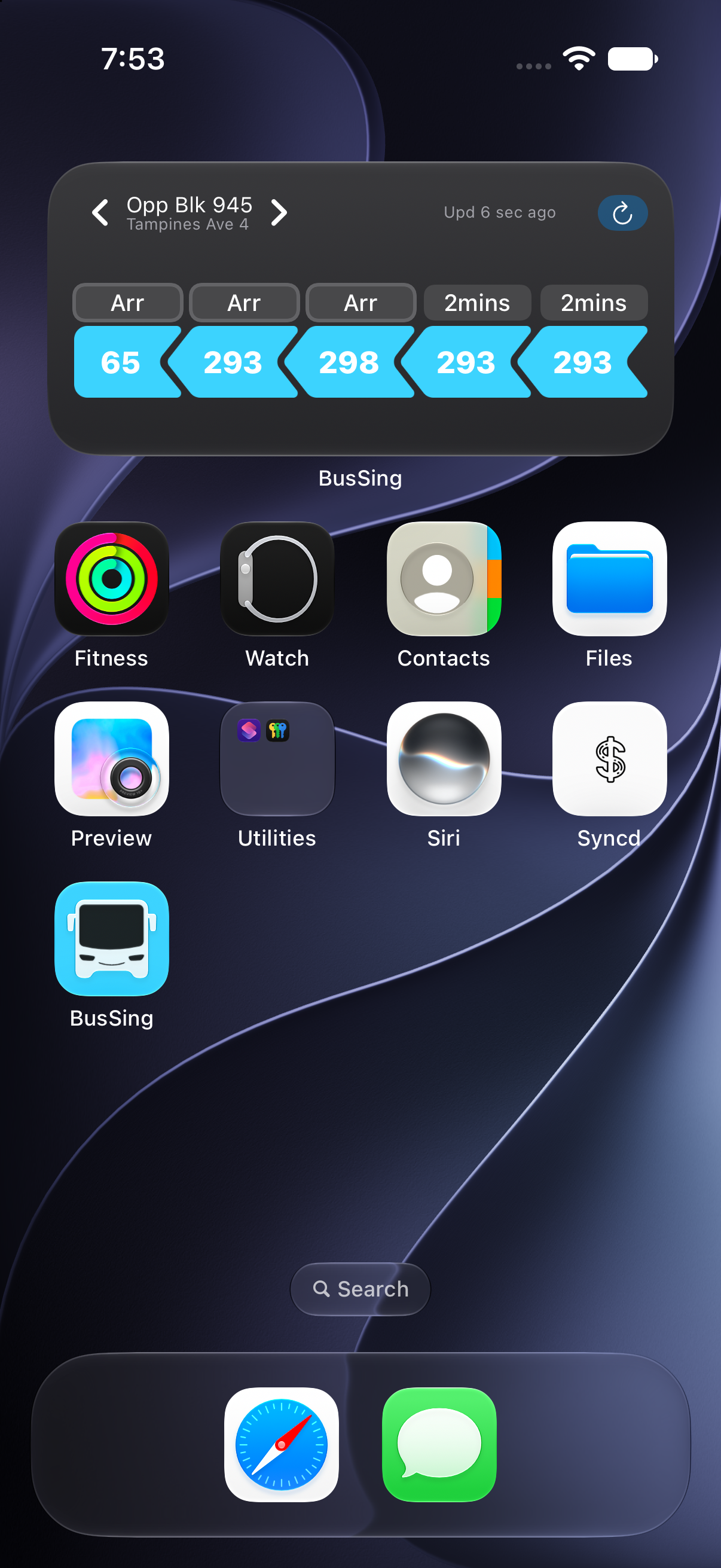

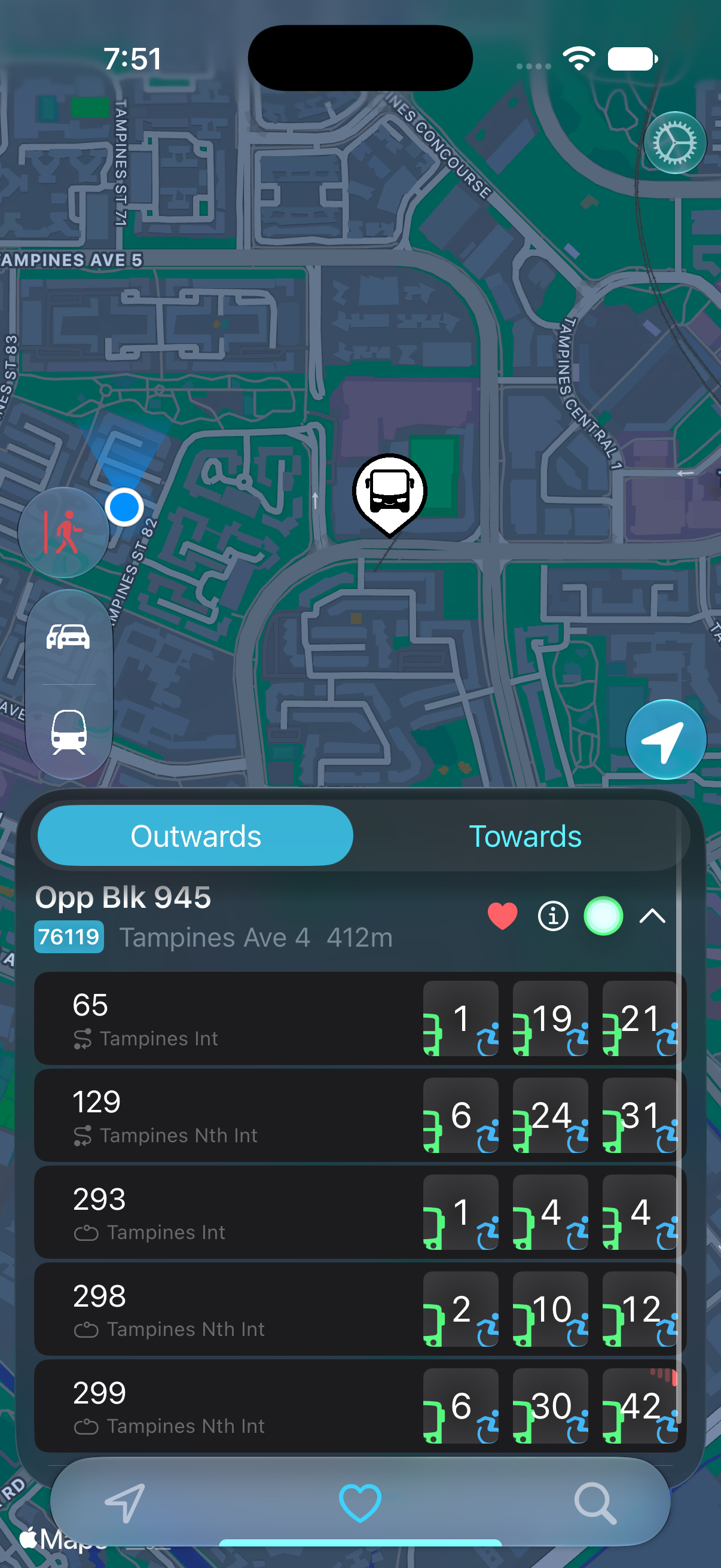
You open your feed at the bus stop, read a few posts, then look up the road. Was that your bus? Back to the arrivals app. Back to your feed. A minute later, you check again. Widgets and Live Activities make that familiar wait easier by keeping your bus timing where you can see it, with fewer interruptions to whatever you were doing.
Check the bus while getting ready
A bus widget earns its place on your Home Screen before you even leave home. BusSing can show arrivals for your usual stop there, so checking the next bus does not mean opening the app and finding the stop each morning.
That makes a small decision easier. Do you have time to finish breakfast, or should you put your shoes on now? A quick look gives you something to plan around. Allow for the lift, the walk and the crossing when deciding which bus to aim for.
A Lock Screen widget is useful for the same reason. When you wake your phone to check the time, your bus information can be there too. Saving a few taps is a modest benefit on one trip. On a journey you make every weekday, it removes a repetitive chore.
Keep scrolling with your bus timing in view
Once you reach the stop, start a Live Activity for the bus you are waiting for. On an iPhone with Dynamic Island, BusSing keeps arrival information visible while another app is open. You can scroll through social media or reply to a message and glance at the timing without switching back to BusSing.
It helps with the most annoying part of waiting. You have time to read something, but keep losing your place because you want to check the bus. With the estimate in view, each check takes less effort. Touch and hold the activity in Dynamic Island when you want more detail, as Apple explains in its guide.
Live Activities also appear on the Lock Screen, including on compatible iPhones without Dynamic Island. If you would rather listen to a podcast with your phone locked, you can wake the screen for a quick check. Keep an eye on approaching buses too, especially as yours gets close.
Apple: view and expand Live Activities in Dynamic Island

Make the journey home easier too
After a long day, searching for the same stop again is one more thing to do. Keep a widget for the stop near work as well as the one near home. Check that each shows the boarding stop for the direction you need.
If you prefer a tidy Home Screen, you can put widgets for both stops in a stack and swipe to the one you want. A familiar setup means less searching when you are tired or carrying shopping. Read the stop name after switching so you do not plan your trip around the opposite direction.
Leave a little room in your timing
Widgets are useful for a quick check, but iOS controls when they refresh their data. Apple documents a refresh budget, so a widget being visible does not mean it has just fetched new arrivals. For the bus you are actively waiting for, use a Live Activity and open BusSing if a timing looks stale.
BusSing uses official LTA arrival estimates, which need an internet connection and can change with traffic or data updates. Give yourself a margin before leaving. Easier access to an estimate helps you decide when to go, but it cannot make a tight connection certain.
Start with the stop you use most
You do not need to rearrange your whole phone. Add one widget for your usual boarding stop and put it on a screen you already use. On your next trip, start a Live Activity before returning to your feed. Try that routine for a few journeys and see whether you spend less time hunting for the same bus timing.
Standard widgets are available without BusSing Express. Express adds unlimited Live Activities and location-aware widgets that select a nearby stop. Live Activities without Express have a limit, so check the app for your current allowance. BusSing requires iOS 18 or later, and Dynamic Island needs supported iPhone hardware.
Sources: BusSing App Store features and compatibility · Apple: Live Activities in Dynamic Island · Apple: keeping a widget up to date
Try it on your next commute.
Live Singapore bus arrivals, widgets and offline MRT maps. All in BusSing.